Image to video AI
Start from a photo, describe how it should move, and ChatCut generates the clip. Then cut it, caption it and add sound on the same timeline.
Trusted by 400,000+ creators
How it works
How to turn an image into a video with AI
- 01
Describe the motion
Write what should move and what the camera does, then open ChatCut and sign in free.
- 02
Add your image
Switch to Video Gen, pick a model, and drop the photo into the first-frame slot. Set the aspect ratio, resolution and length.
- 03
Generate and edit
Check the credit estimate, send, and follow progress in My Assets. Drag the finished clip onto the timeline to keep editing.
Why ChatCut
Why turn images into video in ChatCut
-
Seedance and Kling in one menu
Seedance 2.5, Seedance 2.0, Kling 4.0, Kling 3.0 and more sit in one Video Gen menu. Each model shows its own inputs, lengths and resolutions.
-
Control the first and last frame
Use your photo as the first frame, add an ending frame, or attach reference images for a character, a set or a product.
-
The clip lands in your project
Finished videos appear in My Assets. Download them, or drag them onto the timeline next to your footage.
-
Edit without switching apps
Trim the clip, add captions, music or a voiceover, then export the finished video.
-
See the credit estimate first
The estimate shows next to Send before anything runs. Each take is its own job and charge, so you decide when to try again.
-
Or ask the AI editor
Describe the shot in plain words and the ChatCut Agent sets up the generation for you. Agent messages use credits too.
Tips
Plan motion for image to video AI
Start with a clear image, then describe one main movement and what should stay fixed.
-
Prepare the starting frame
Use a sharp image with one clear subject and crop to the final aspect ratio because the clip starts from that frame.
-
Describe one main movement
Specify who moves, direction, speed, and camera motion so the prompt focuses on changes the image does not already show.
-
Add the intended final frame
Use a supported last frame when the ending matters, keeping framing and light similar to reduce what the model must invent.
Use cases
What people make with image to video AI
-
Bring a still photo to life
Give a portrait or a travel shot gentle motion: hair in the wind, a slow push-in, light sliding across the frame. This still came from GPT Image 2.6 and was animated with Kling 4.0.
-
Product shots from one photo
Attach the product photo as a reference and name what must not change, such as the label. This coffee bag kept its wording through a Seedance 2.5 take.
-
Characters that stay the same
Add character sheets and a set as reference images, name each one in the prompt, and reuse them for the next shot of the story.
-
Test a shot before you plan it
Generate a key frame, animate it, and see whether the move works before you book a shoot or brief an animator.
Keep editing
One clip is the start of a video
Generate several shots, cut them together, add captions and music, and export the finished video from the same editor. Manual editing and export don't use credits. Need a clip from words alone? Try text to video.
- Conversational editing
- Text-based editing
- Auto-captions
- Motion graphics
- AI voiceover
- Generate clips
- Noise removal
- Multi-track timeline
-
You Can Now Edit Videos with Grok Bot
Edit with Grok Bot -
How to Make 3× the Content With AI (No Editing Experience)
Turn long videos into shorts -
I Turned One Product Photo Into a Full Ad With ChatGPT
Product ads skill -
How to Create Insane Motion Graphics with Astra 6
AI motion graphics
Skills
Hundreds of skills for any video
100+ Skills. No experience needed. Start in one click.

FAQ
Image to video AI FAQ
How does image to video work in ChatCut?
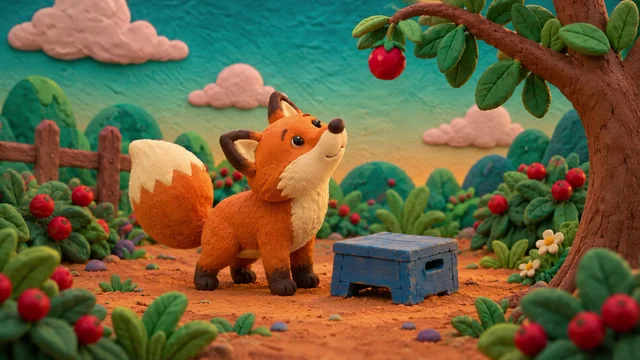
Switch the composer to Video Gen, pick a model, add your image as the first frame (and a last frame if you want one), describe the motion and send. The clip appears in My Assets for you to download or edit.
What happens when I click Animate it in ChatCut?
ChatCut opens in a new tab with your request. Sign in with Google or email within 30 minutes and the agent starts a new project from it. If you picked an example, the agent uses that image as the first frame, so there is nothing to upload; with your own photo, add it when the agent asks. The request asks the agent to show the credit estimate before it generates.
Which AI models can I use?
The Video Gen menu lists Seedance 2.5, Seedance 2.0, Seedance 2.0 Fast and mini, Gemini Omni, MiniMax H3 and H3 Max, Kling 3.0 and Kling 4.0. Inputs, lengths and resolutions differ by model; the Model Capability Matrix lists them.
Is image to video free?
No. Video generation is a Pro feature and uses credits, and ChatCut shows the estimate before you send. Trimming, captioning and exporting the result on the timeline don't use credits. Rates are in the credits policy.
Can I control how the video ends?
Yes. Models that support frames take a first and a last frame, so the clip moves from one image to the other. Keep both frames similar in framing and lighting for a smoother move.
What should I write in the prompt?
Say what should move, how the camera behaves and the mood, for example a slow push-in, hair moving in the wind, warm evening light. Then name what must stay the same, like the face or the product label.
How long can an image to video clip be?
It depends on the model. Kling 3.0 makes 3 to 15 seconds and Kling 4.0 up to 30 seconds in one clip. For anything longer, generate several shots and cut them together on the timeline.
Can I get more than one version?
Each successful generation gives you one video. Send the same prompt again for another take; every take is a separate job, asset and charge.
Can I edit the generated video?
Yes. Trim it, add captions, music or a voiceover, combine it with other clips and export, all in ChatCut. You can also turn photos into a slideshow without generating anything.
Related
More AI video tools
All AI apps
Audio & voice
Captions, text & translation
AI video & images
All free tools
Convert & compress
Edit video
Audio & voice