Translate Spanish video to English
Turn Spanish speech into an English version of your video in ChatCut. Review the Spanish source transcript, then choose audio-only dubbing or mouth synchronization.







Trusted by 400,000+ creators
How it works
How to translate Spanish video to English
- 01
Describe your English version
Write the translation request above, open ChatCut, and sign in free. Import the Spanish video through My Assets → Upload → Files…; export a shorter section first if that is all you need.
- 02
Choose speech, captions, and timing
Open the AI panel in Agent mode and @ mention the source. Request English, choose audio only or lip sync, and state caption and duration preferences. Review and confirm the Spanish source transcript.
- 03
Approve and review the English result
Check the treatment, full source duration, and credit estimate in the paid confirmation. After generation, review meaning, pronunciation, captions, and any mouth synchronization before adding the new asset to the timeline.
Why ChatCut
Why translate Spanish video to English here
-
Correct the Spanish source first
Review the detected Spanish transcript before confirming it. Check names, numbers, and technical vocabulary against the original speech.
-
Create an English spoken version
Request English and ask to preserve the speaker’s voice. The translation workflow creates a separate localized video.
-
Keep the original picture
Choose audio-only dubbing when the picture must remain unchanged. Specify whether to include translated captions.
-
Add mouth synchronization when needed
Request mouth synchronization within video translation for an on-camera presenter. It re-renders the picture, so review the result with sound on.
-
Set the English pacing requirement
Request exact source duration to keep existing timing, or allow slight changes for natural English pacing.
-
Keep both language versions
The English asset arrives in My Assets without replacing the Spanish source. Compare them, then drag the result onto the timeline.
Tips
Translate Spanish video to English with context
Choose English text, speech, or both, then review the Spanish source before checking the translation.
-
Verify names and meaning
Check the Spanish transcript against the recording and compare English terms with a terminology list to catch changes in meaning.
-
Check each instruction against the picture
Play English speech and captions against each screen action so important words arrive while the relevant demonstration is visible.
-
Export a representative excerpt
Trim and export the wanted portion before translation because the full source asset is processed and billed.
Use cases
Ways to translate Spanish video to English
-
Presenter explanations for English viewers
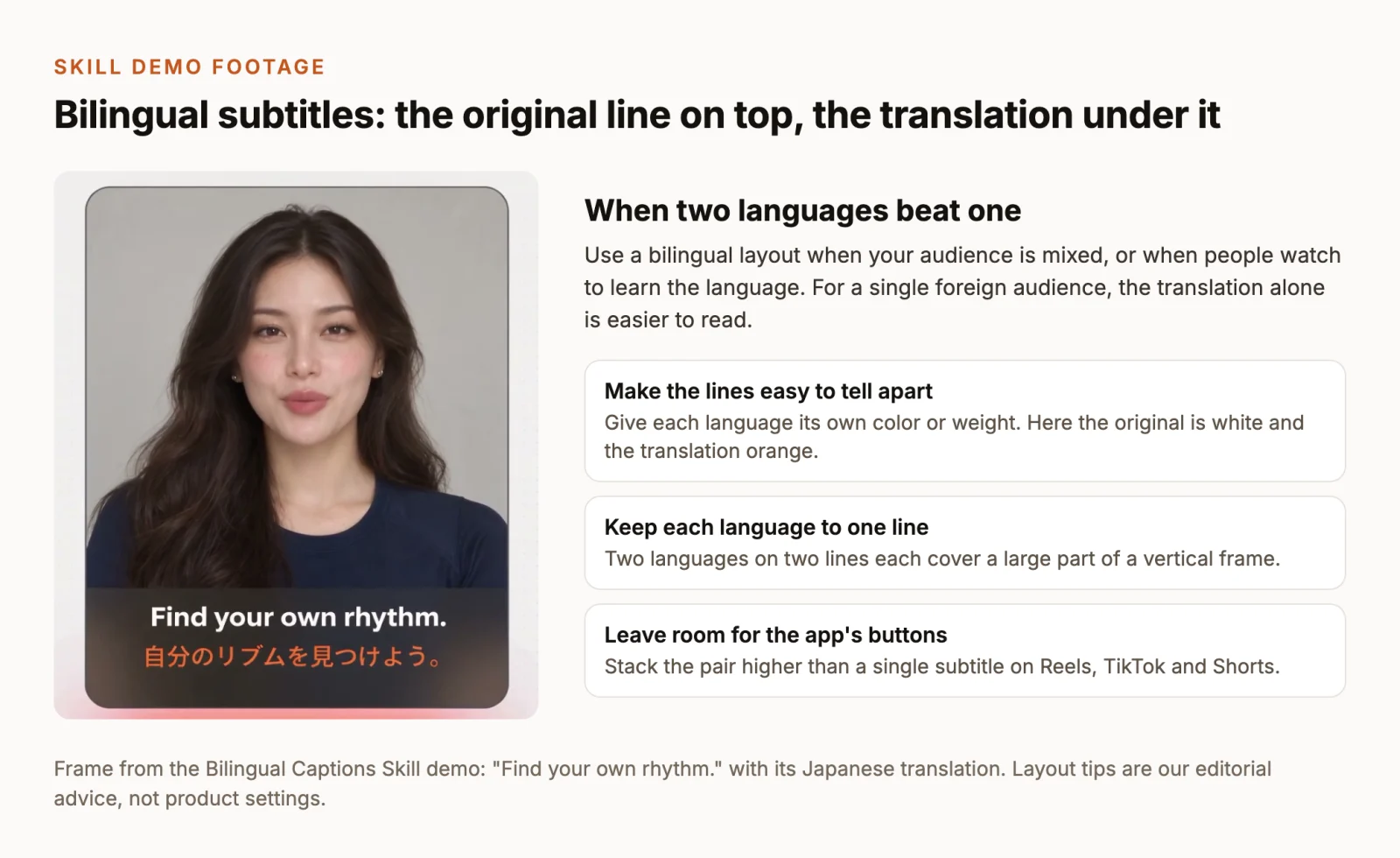
Keep the Spanish source available while checking the English meaning. Use bilingual captions to compare names, numbers, and key phrases during review.
-
Short videos with translated scripts
Review the English wording alongside the source script before sharing a short video. Play each caption at the pace of the edit to catch lines that need shorter phrasing.
-
English captions for short explainers
Keep the Spanish speech and add English text when viewers need a readable translation. Give key phrases room on screen, then check the caption style against the footage.
Keep editing
Keep editing the English version
Compare the English asset with the Spanish source, trim it, and check captions. For narration from a new script, use the voice generator; translation starts from existing speech.
- Conversational editing
- Text-based editing
- Auto-captions
- Motion graphics
- AI voiceover
- Generate clips
- Noise removal
- Multi-track timeline
-
You Can Now Edit Videos with Grok Bot
Edit with Grok Bot -
How to Make 3× the Content With AI (No Editing Experience)
Turn long videos into shorts -
I Turned One Product Photo Into a Full Ad With ChatGPT
Product ads skill -
How to Create Insane Motion Graphics with Astra 6
AI motion graphics
Skills
Hundreds of skills for any video
100+ Skills. No experience needed. Start in one click.






FAQ
Spanish to English video translation FAQ
How do I translate Spanish video to English?
Import the Spanish video into My Assets and @ mention it in Agent mode. Request English, choose audio only or mouth sync, and state caption and timing preferences. Confirm the source transcript, then review the estimate before approving generation.
Can I get English subtitles without a new voice track?
Yes. Turn on captions for the transcribed Spanish track, open the Captions dropdown, and choose Translate captions with English as the target. Select the new translation source to review or export it. The caption documentation explains the separate text workflow.
Can the English version keep the speaker’s voice?
Video translation can match the original speaker’s voice. Request voice preservation and confirm your rights to the footage and speakers. Review pronunciation, tone, and speaker changes in the English result.
Is Spanish to English video translation free?
Spoken translation uses credits, and the paid confirmation shows an estimate before generation. Built-in Agent messages also use credits. Uploading, transcription, manual editing, and export do not consume credits; see the credits policy for those distinctions.
Will the English video have the same length?
Request exact source duration when your edit depends on the original timing, or allow slight changes for natural pacing. Review each instruction against the picture; matching the total length does not guarantee sentence-level alignment.
Does mouth synchronization preserve the original file properties?
No identical-file guarantee applies to that treatment. Lip sync re-renders the picture, so alpha, HDR, codec, bitrate, and frame rate may differ. Choose audio-only translation when the picture must remain unchanged; the Lip Sync guide explains the distinction.
Can I translate only a short part and download it?
Trim and export the wanted section as a separate asset first, because translation processes and bills the full source you provide. When the localized video finishes, use Download on its My Assets card when available. For an edited version with other clips, add it to the timeline and export that edit.
Which source video formats should I use?
Common project inputs include MP4, MOV, and WebM; the actual codec must also be readable on your browser or computer. H.264 in MP4 is a practical interchange choice. Review supported formats if the source file will not import or play correctly.
Related
More Spanish to English video translation tools
All AI apps
Audio & voice
Captions, text & translation
AI video & images
All free tools
Convert & compress
Edit video
Audio & voice